 By admin
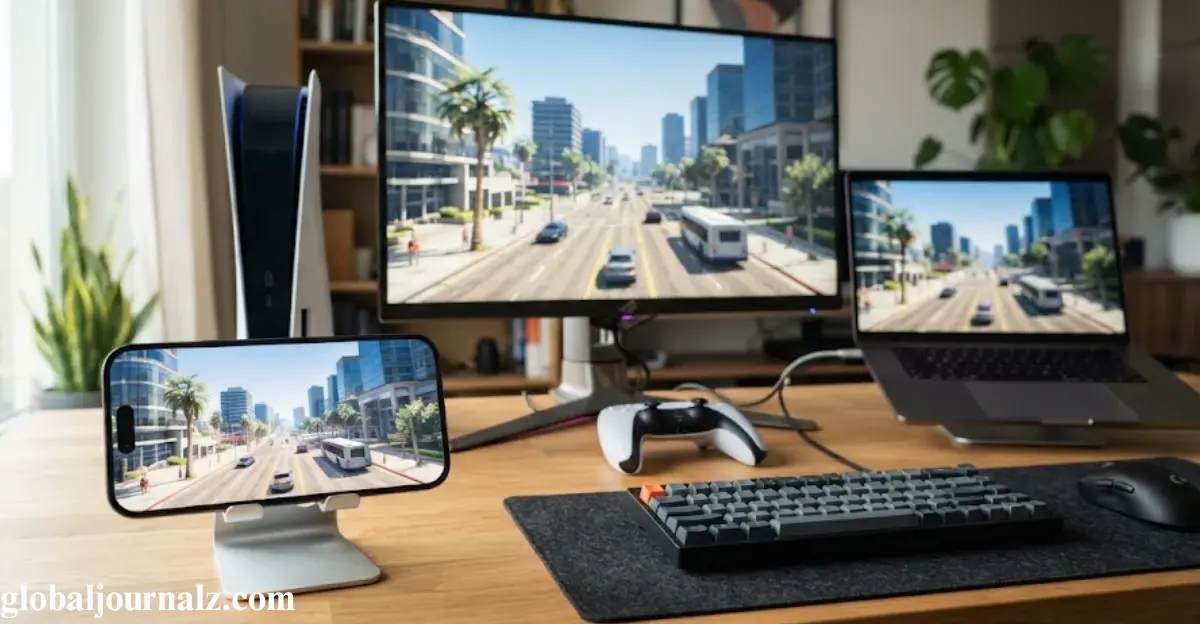
Grand Theft Auto 6 offers an exciting gaming experience, and Remote Play makes it possible to enjoy the action beyond your console screen. With the right setup, you can stream your gameplay to a compatible mobile phone, laptop, or PC using official PlayStation or Xbox remote-play features. The console runs the game while your other device displays the action and sends your controls. This guide explains the official setup requirements, connection options and steps to enjoy GTA 6 on different devices.
Table of Contents
What You Need Before Starting
Playing GTA 6 through Remote Play or cloud gaming depends on your setup, compatible devices and internet connection. These options allow you to enjoy console gaming remotely by streaming gameplay to another screen.
Before starting, check your gaming requirements, including whether you have a home console, a compatible receiving device and a suitable game streaming setup. Your chosen method determines whether the game runs on your own console or through remote servers.
Remote gaming sends a video feed from the system running the game to your receiving device. With the right equipment and a stable connection, remote access gaming can let you play away from your usual television or gaming space.
Remote Play and Cloud Gaming
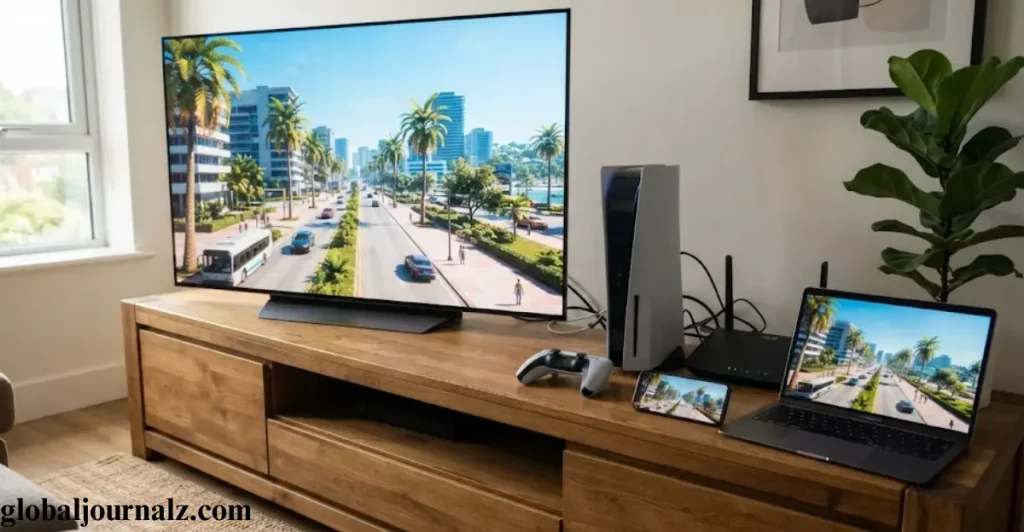
Remote Play and cloud gaming both let you play games through an internet connection, but they work differently. Remote Play uses your home console to run the game, while cloud gaming relies on remote servers to process and stream gameplay.
Remote Play, your console handles the graphics processing and sends a video feed to your phone, computer or another supported device. Your inputs travel back to the console, allowing you to control the game from a distance.
Cloud gaming uses remote corporate servers or other cloud-based systems to run the game and stream the result to your screen. In both cases, the receiving device displays the gameplay, but console-based game streaming depends on your own console’s processing power.
Console and Game Requirements
For console-based Remote Play, you need a compatible PS5 or Xbox Series X|S connected to your home network. The console must support the Remote Play feature and be set up to allow remote access.
You will also need a purchased copy of GTA 6 and the game installed on your console. Game ownership, console compatibility and a completed GTA 6 installation are essential before you can stream the game through your home system.
Once the game is installed, your home gaming console runs it while your compatible device receives the stream. Remote Play does not move the game itself to your phone or computer; it lets you control the console remotely.
Internet Connection and Network Speed
A fast internet connection and a stable connection are important for smooth remote gameplay. Both the console and the receiving device need reliable internet access, since the game stream and your controller inputs travel between them.
Sony recommends at least 15 Mbps for a better Remote Play experience, while Xbox guidance commonly recommends around 7–10 Mbps as a baseline. Actual performance depends on network conditions, the receiving device and how much bandwidth is available.
A 5GHz Wi-Fi network can help reduce interference and improve connection quality, while an Ethernet cable provides a more consistent wired connection for your console. A reliable router connection, strong signal and network stability can reduce lag and support smoother gameplay.
Compatible Controllers and Mobile Controls
A compatible controller can make remote gameplay easier, especially for games that require precise movement and quick reactions. Supported options may include the DualSense controller for PS5 or an Xbox Wireless Controller for Xbox.
If your controller supports Bluetooth pairing, you can connect it to a compatible phone, tablet or computer. Make sure the controller is connected to the receiving device or configured correctly for your chosen Remote Play setup.
Some mobile gaming apps also provide on-screen touch buttons, allowing you to play without a separate controller. However, physical controls may offer better comfort and precision for games that require responsive driving controls and shooting controls.
Streaming Quality and Gameplay Performance
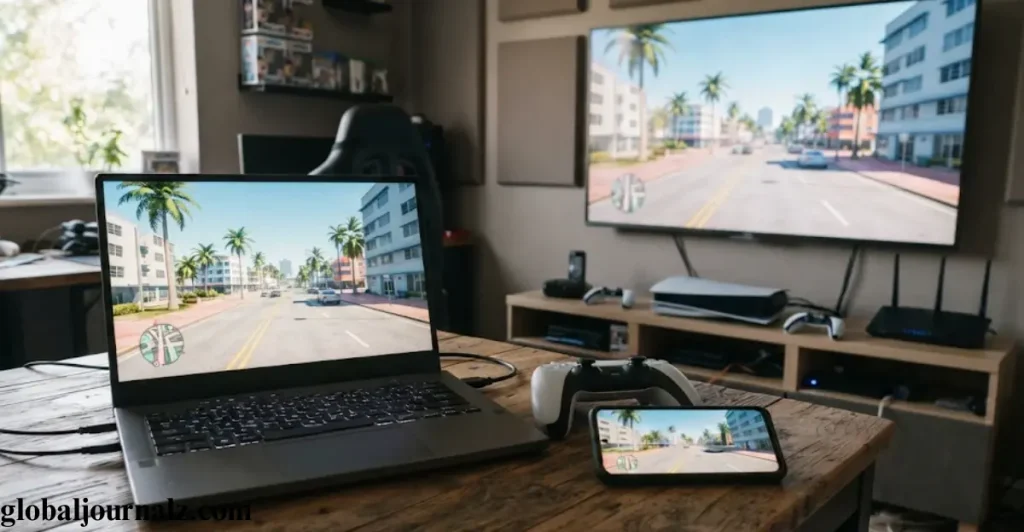
A smooth gaming experience depends on more than internet speed alone. Your console’s graphics processing, the receiving device’s screen and the reliability of the connection all affect how gameplay appears and responds.
Low-lag gameplay requires the video stream to arrive quickly and your controller inputs to reach the console without significant delay. Network interruptions or weak Wi-Fi can affect gameplay responsiveness, making movement and aiming feel less precise.
For better Remote Play performance, use a stable network, keep the console and receiving device connected reliably, and choose a setup that supports comfortable controls. Good network reliability helps maintain consistent console-to-device streaming and a clear remote screen display.
How to Play GTA 6 on a Laptop or PC (Windows & Mac)
PlayStation 5 Remote Play Setup
GTA 6 can be streamed to a laptop or computer through Remote Play when the game is installed on a compatible home console. This allows laptop gaming and PC gaming without installing the console version of the game directly on Windows or Mac.
For a PlayStation 5, start by connecting your console to the internet and signing in to your PlayStation account. On the PS5, open Settings > System > Remote Play and select Enable Remote Play to activate the feature.
Once Remote Play is enabled, your home console can stream gameplay to a compatible computer. This setup supports computer game streaming and laptop gameplay, while the PS5 continues running the game.
PS5 Rest Mode and Network Settings
To make remote access easier, configure your PS5 Rest Mode settings so the console can maintain network access while resting. Open the PS5 settings and select Power Saving, then choose Features Available in Rest Mode.
Enable Stay Connected to the Internet so the console can remain connected while in Rest Mode. You can also enable Enable Turning On PS5 from Network to allow remote startup when supported by your setup.
These PS5 network configuration options help the console remain available for remote gaming. A stable internet connection and correct console power settings are important for reliable access when you want to start a session away from home.
PS Remote Play Desktop App
Install the official PS Remote Play desktop app on your Windows laptop or MacBook. The application provides the connection between your computer and the PS5, allowing the console’s gameplay to appear on your computer screen.
After downloading and installing the PC app or Mac app, open it and sign in using the same PlayStation Network (PSN) account connected to your console. Follow the on-screen setup instructions to complete the app installation.
The PS Remote Play software acts as desktop streaming software rather than a native PC version of GTA 6. Your computer receives the console’s video feed, while the PS5 handles the game’s processing.
Controller Connection and Compatibility
For comfortable computer gameplay, connect a PS5 DualSense controller or a compatible PS4 DualShock 4 controller to your laptop or PC. A controller can be connected using a USB cable or Bluetooth, depending on the device and controller support.
To use a wireless controller, open your computer’s Bluetooth settings and start controller pairing. Put the controller into pairing mode, then select it from the available devices to complete the connection.
A wired laptop controller connection can be useful if Bluetooth is unavailable or unstable. Check that the controller is recognised by the computer and works correctly before starting your remote gaming session.
Launching GTA 6 and Streaming to a Computer
Open the PS Remote Play app and sign in with your PlayStation Network account. Select your PS5 from the available consoles and wait for the connection to display your console’s home screen on the computer.
From the streamed console home screen, launch GTA 6 as you normally would on the PS5. The game will appear on your computer monitor, laptop screen or PC display, while your controller inputs are sent back to the console.
This method provides GTA 6 on PC or GTA 6 on Mac through streaming, not a separate Windows or macOS installation. A stable connection helps maintain responsive remote gameplay across your Windows and Mac streaming setup.
Xbox Series X|S Remote Play Setup
You can also stream GTA 6 from an Xbox Series X|S to a compatible computer using Xbox remote gaming features. First, connect the Xbox console to the internet and sign in to the Microsoft account associated with your game.
On the console, open Profile & system, then go to Settings > Devices & connections > Remote features. Select Enable remote features to allow remote console access and prepare the Xbox for streaming.
Next, check the console’s Power options and choose a supported standby setting, such as Sleep mode, if available. These settings help keep the console ready for remote access; a full shutdown may prevent remote startup until the console is turned on again.
Xbox Controller and Browser Connection
Connect an Xbox Wireless Controller to your Windows PC or Mac using a USB connection or Bluetooth. For Bluetooth pairing, press and hold the controller’s Pair button for about three seconds, until the controller light begins flashing.
Open the computer’s Bluetooth menu and select the controller to complete the connection. Once paired, check that the controller is ready to use before starting the remote gaming session.
Xbox remote console play is different from cloud gaming through a web browser. Browser-based services such as xbox.com/play may provide supported cloud gaming, while console Remote Play availability and setup depend on the Xbox app or supported remote-play access for your device.
Xbox Account Sign-In and Gameplay
For Xbox remote gaming, sign in with the Microsoft account connected to your console and game. Open the supported Xbox remote-play option on your computer and follow the prompts to connect to your home Xbox.
If the interface displays your consoles, select your Xbox Series X|S and choose the option to start remote play on this device. The connection should open your Xbox home screen, allowing you to launch GTA 6 from the console.
Once the game starts, the console sends the gameplay to your computer while your controller inputs travel back to the Xbox. This provides GTA 6 streaming and console-to-PC streaming without installing the Xbox console version directly on Windows or Mac.
GTA 6 on Mobile Phones
GTA 6 can be played on a mobile phone through smartphone streaming, provided the game is running on a compatible home console. This approach supports mobile phone gaming on Android and iOS devices without installing the console version directly on the phone.
For this setup, you need a compatible PlayStation 5 or Xbox Series X|S, a copy of the game, and a reliable internet connection. Your console runs the game and sends its video feed to your phone through mobile Remote Play.
The phone acts as a screen and control device, while the console handles the game’s processing. With the required mobile software and remote console access configured, you can enjoy phone-based gameplay away from your usual gaming setup.
PlayStation 5 Mobile Remote Play
PlayStation 5 owners can stream gameplay to a phone using the PS Remote Play app. Download the app from Google Play for a compatible Android device or the Apple App Store for an iPhone or iPad.
Sign in to the app using the same PSN account linked to your PS5, then follow the instructions to link your phone to the console. Make sure Remote Play is enabled on the PS5 and that the console is connected to the internet.
For controller-based gameplay, pair a DualSense controller with your phone using Bluetooth. Put the controller into pairing mode by holding the Create button and PS button until the light bar blinks, then select it in your phone’s Bluetooth settings to complete mobile controller pairing.
Xbox Mobile Remote Play and Third-Party Apps
Xbox Series X|S owners can use Xbox remote play to stream console gameplay to a compatible mobile device. On an iPhone, supported access may be available through a browser such as Safari or Chrome, depending on the current Xbox service and device support.
To create a convenient shortcut, open the supported Xbox remote-play page and use the iPhone Share button, then select Add to Home Screen. This creates an app-like experience for returning to the service, but it does not install a native Xbox Remote Play app.
To connect a controller, hold the Xbox controller’s Pair button for about three seconds until its light flashes, then select it in your phone’s Bluetooth settings. Sign in with your Microsoft account, select your console and choose Remote play on this device if that option is available for your setup.
Some players also use third-party apps such as PXPlay for PlayStation streaming or Better xCloud for Xbox-related remote-play features. These tools may offer additional options, such as higher bitrates or broader controller support, but availability and compatibility can vary check the app’s current requirements before installing or paying for it.
Conclusion
Remote Play gives GTA 6 players more flexibility by allowing them to continue their gaming sessions on compatible phones, laptops, and computers. However, it is important to understand that streaming is different from downloading and installing a native version of the game. A supported console an eligible game copy, the official remote-play service and a reliable internet connection are essential for a smooth experience. Choosing the correct setup also helps avoid unofficial downloads and misleading mobile or PC installation claims. With the right connection, you can enjoy the GTA 6 experience on a screen that suits your gaming needs.
FAQs
Can I play GTA 6 on my Android phone or iPhone?
Yes, you can stream GTA 6 to a compatible Android phone or iPhone through official console Remote Play. You need a supported PlayStation or Xbox console running the game, along with a stable internet connection.
How can I play GTA 6 on a laptop or PC?
You can use PS Remote Play on a compatible Windows PC or Mac, or Xbox Remote Play through a supported browser. Connect to your console, sign in with the account associated with your game, and stream your gameplay to your computer.
Do I need a PS5 or Xbox Series X|S to play GTA 6 remotely?
You need access to a supported console that can run GTA 6. The game is officially available on PS5 and Xbox Series X|S. Xbox Cloud Gaming also provides an announced option for streaming GTA 6 on Xbox One, subject to availability and eligibility.
Can I download and install GTA 6 directly on Android, iPhone, or PC?
A native Android or iPhone version is not officially available, and Rockstar’s listed platforms do not include a native Windows PC release. Remote Play streams the game from a console rather than installing it directly on your device.
What internet speed do I need for GTA 6 Remote Play?
A stable broadband or Wi-Fi connection is important for smooth gameplay. PlayStation recommends at least 5 Mbps, with 15 Mbps or higher for a better Remote Play experience. A reliable connection with low latency can also help reduce delays.
 Muhammad Bilal